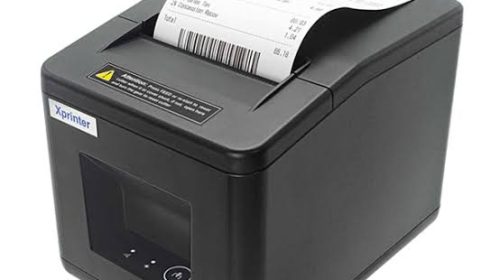
A reliable point-of-sale (POS) system helps businesses manage transactions, record sales, and provide customers with efficient service. However, the performance of a POS setup depends on more than its software and payment terminal. Printing equipment also plays an important role, particularly when businesses need to issue receipts quickly and maintain accurate transaction records.
Choosing an Xprinter Receipt Printer for a POS system requires careful consideration of printing technology, connectivity, software compatibility, and daily workload. Different business environments have different requirements, so the most suitable model is one that integrates smoothly with existing equipment and supports regular operations without unnecessary complications.
1. Understand Your POS System Requirements
Before selecting a receipt printer, review the specifications of your current POS system. Identify the operating system, available connection ports, billing software, and printing requirements.
Some POS systems operate through desktop computers, while others use dedicated terminals or mobile devices. A printer that works with one configuration may not automatically support another.
Check the manufacturer’s compatibility information and confirm that the printer supports the software and hardware used by your business. This initial assessment can prevent installation problems later.
2. Choose the Right Printing Technology
Receipt printers commonly use thermal or impact printing technology. Each option serves different business needs.
Thermal Receipt Printers
Thermal printers use heat-sensitive paper to create text and images. They are popular in retail and hospitality environments because they generally offer fast, quiet printing without requiring ink cartridges or ribbons.
They are suitable for standard customer receipts, payment summaries, and other short-format documents.
Impact Receipt Printers
Impact printers use a print head and ribbon to transfer information onto paper. They may be useful when businesses need multi-part forms or specific paper formats.
Restaurants and certain service environments may prefer impact printing for particular applications, depending on their documentation requirements.
3. Compare Printing Speed
Printing speed can influence how efficiently a POS system handles transactions. Businesses that process many purchases during peak hours may benefit from a printer designed for higher-volume use.
Compare the manufacturer’s stated printing speed and consider the complexity of the documents being printed. A receipt containing simple text may print differently from one that includes logos, barcodes, and detailed information.
For small businesses with fewer transactions, moderate printing performance may be sufficient. Supermarkets and busy restaurants should evaluate speed more carefully to avoid unnecessary delays.
4. Check Connectivity Options
A receipt printer must communicate reliably with the POS terminal. Different models may offer different interfaces, so the correct option depends on the existing system.
Common connection types include:
- USB: Suitable for direct connections to compatible computers and POS terminals.
- Ethernet: Useful for network-based installations and certain multi-terminal environments.
- Bluetooth: Allows wireless communication with supported mobile devices.
- Wi-Fi: Provides wireless network connectivity on compatible models.
- Serial: Supports some traditional POS configurations.
Before purchasing, confirm which connection types are available on both the printer and the POS system. Also consider the distance between devices and whether wireless connectivity is necessary.
5. Verify Software and Driver Compatibility
Software compatibility is essential for smooth operation. Even a printer with suitable hardware specifications may not work properly if its drivers or printing commands are unsupported by the POS application.
Check the following details:
- Supported operating systems.
- Availability of installation drivers.
- Compatibility with the POS application.
- Supported printer command languages.
- Barcode and QR code printing requirements.
- Access to technical documentation and setup instructions.
If possible, test the printer with the actual POS software before deploying it throughout the business.
6. Select the Appropriate Paper Size
Receipt printers are designed to support specific paper widths and roll dimensions. The correct paper format depends on the amount of information printed on each receipt.
Narrower rolls may work well for simple payment confirmations, while wider formats can accommodate longer product descriptions, additional transaction details, and promotional information.
Check the supported paper width, roll diameter, and paper type listed in the product specifications. Using compatible supplies helps maintain consistent paper feeding and printing quality.
7. Consider Print Quality and Barcode Support
A receipt should display readable text and accurately printed transaction details. Poor print quality can make prices, product names, and payment information difficult to understand.
Businesses that use loyalty programs, digital coupons, or inventory-related information may also need barcode or QR code printing. In these situations, confirm that the printer supports the required formats and provides suitable output clarity.
Paper quality, print settings, and regular cleaning also contribute to consistent results.
8. Evaluate Design and Available Space
The printer’s physical design should match the layout of the checkout counter or workstation. Compact models can be useful for small retail shops, cafés, and service counters where space is limited.
Consider how employees will load paper, access the control buttons, and reach the connection ports. If the printer will be used in a busy environment, an accessible design can make routine tasks easier.
For businesses with several checkout stations, consistent placement and cable management can help maintain an organized workspace.
9. Review Durability and Maintenance Requirements
A printer used throughout the day should be appropriate for the expected workload. Review the manufacturer’s recommended operating conditions and relevant component specifications before purchasing.
Maintenance requirements should also be considered. Thermal print heads, rollers, and paper paths may need periodic cleaning to prevent faded output or paper-feeding problems.
Choose equipment with clear maintenance instructions and consider the availability of compatible replacement components. Regular care can help reduce avoidable interruptions.
10. Match the Printer to Your Business Type
Different industries have different POS requirements.
Retail shops: Often need reliable printing for purchase receipts, returns, and payment confirmations.
Supermarkets: May require faster printing performance and equipment suitable for frequent daily transactions.
Restaurants and cafés: May need separate printing arrangements for customer bills and kitchen order tickets.
Hotels: Can benefit from compact printers at reception desks and service counters.
Small service businesses: May prioritize simple connectivity, affordable supplies, and straightforward installation.
Understanding these differences helps businesses avoid purchasing equipment with unnecessary features or insufficient capabilities.
Common Mistakes to Avoid When Choosing a Receipt Printer
Businesses sometimes focus only on the initial purchase price and overlook other important considerations. A low-cost printer may create additional expenses if it requires incompatible supplies or does not work with existing software.
Other common mistakes include ignoring connection requirements, selecting the wrong paper width, overlooking driver availability, and failing to estimate daily printing volume.
Reviewing these factors before purchasing can make the selection process more effective and reduce the risk of integration problems.
Conclusion
Choosing the best receipt printer for a POS system involves evaluating compatibility, printing technology, speed, connectivity, paper requirements, print quality, and maintenance needs. The right combination depends on the size of the business and the way its checkout operations function.
By comparing technical specifications with actual business requirements, organizations can select an Xprinter model that integrates effectively with their POS setup and supports reliable transaction processing.